Clients
Viewing Your Clients
Go to Clients in the sidebar. Stats cards at the top summarize your client base, and below them the list shows each client in columns: Client, Contact, Type & Status, Lead Source, Bookings, Revenue, and Actions.
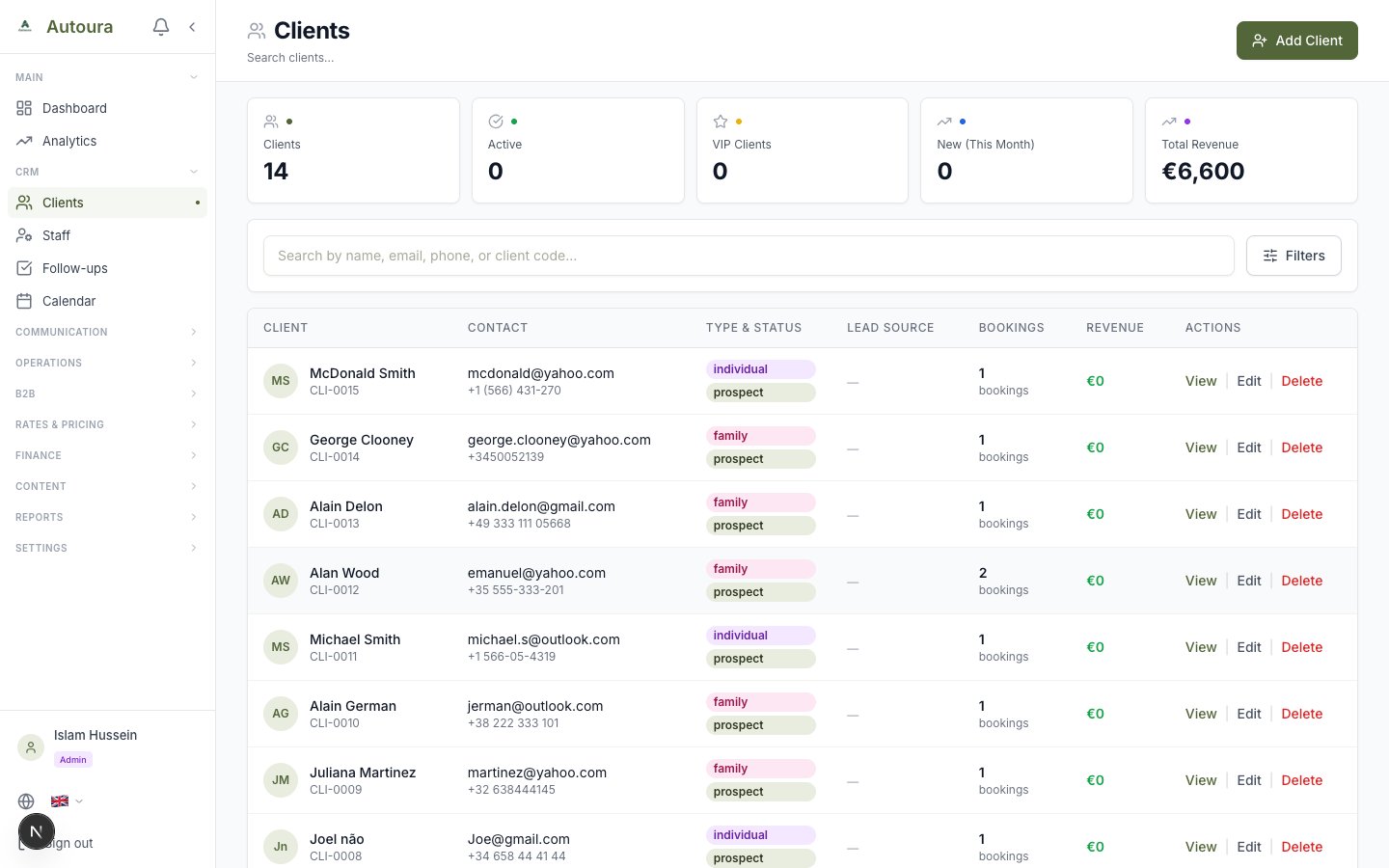
Client list with stats cards, search, filters, and columns for client, contact, type and status, lead source, bookings, and revenue
Finding a Client
- Type in the Search bar (searches name, email, phone, or client code)
- Use the Filters to narrow by stage, client type, lead source, VIP status, or a date range
- Every client has a stage: a Lead has asked but not booked (that is how an inbound email, WhatsApp or concierge brief starts); the first booking makes them a Customer automatically. Inactive and Blocked are set by hand.
- Sort by Most Recent, Oldest First, Name A-Z / Z-A, Revenue (high or low), or Bookings (Most)
Adding a New Client
Click New Client (top right). The form is a 5-step wizard:
- Basic Info — First Name and Last Name (both required), plus nationality and passport type (Euro Passport or Other Passport — this affects entrance fee pricing)
- Contact — Email, phone, and address details
- Preferences — Travel preferences to help you personalize trips
- Business — Company details for corporate clients
- Classification — Client type, status, and lead source (WhatsApp, Email, Website, Referral, Phone, Social Media, Trade Show, or Other)
Click Create Client on the final step to save.
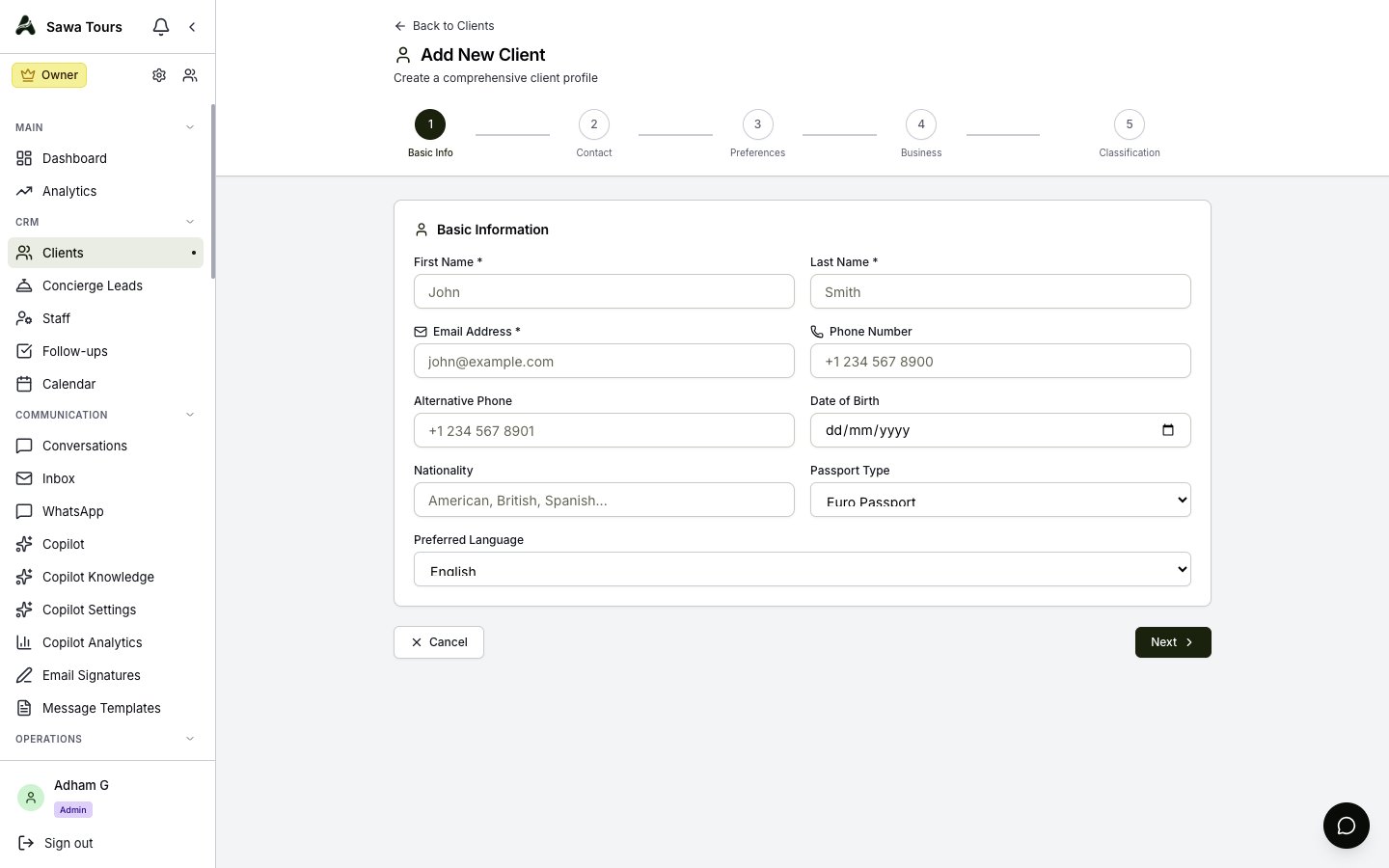
New Client wizard on the Basic Info step, showing First Name, Last Name, nationality, and passport type fields
Viewing Client Details
Click on any client name to see their full profile. The client page has these tabs:
- Overview — All client information, VIP status, total bookings, revenue, tags
- Communications — Every email, WhatsApp message, phone call logged with this client
- Bookings — All itineraries and bookings linked to this client
- Notes — Internal notes visible only to your team
- Follow-ups — Tasks and reminders linked to this client
The detail page is also where you can delete a client if a record was created by mistake.
Screenshot: Client detail page with Overview tab selected showing client info, bookings count, and revenue
Quick Actions
From the client detail page, you can:
- Log Communication — Record a phone call, meeting, or other interaction
- Add Follow-up — Create a reminder to call or email the client
- Add Note — Write an internal note