AI Copilot
The AI Copilot drafts replies to incoming WhatsApp and email messages so your team reviews and approves instead of typing from scratch. Every draft goes through a human before it reaches a customer — unless you deliberately enable auto-reply.
The Review Queue
Open Copilot in the sidebar (Communicate group). The page is a review queue with a thread list on the left and a review panel on the right:
- Thread List — Each thread shows an urgency dot, a channel icon (WhatsApp or email), the client, a message snippet, and an “N drafts to review” badge
- Tone Selector — In the header, pick your preferred drafting tone: professional, friendly, or formal (saved per user)
- Refresh — Reloads the queue to pick up new threads and drafts
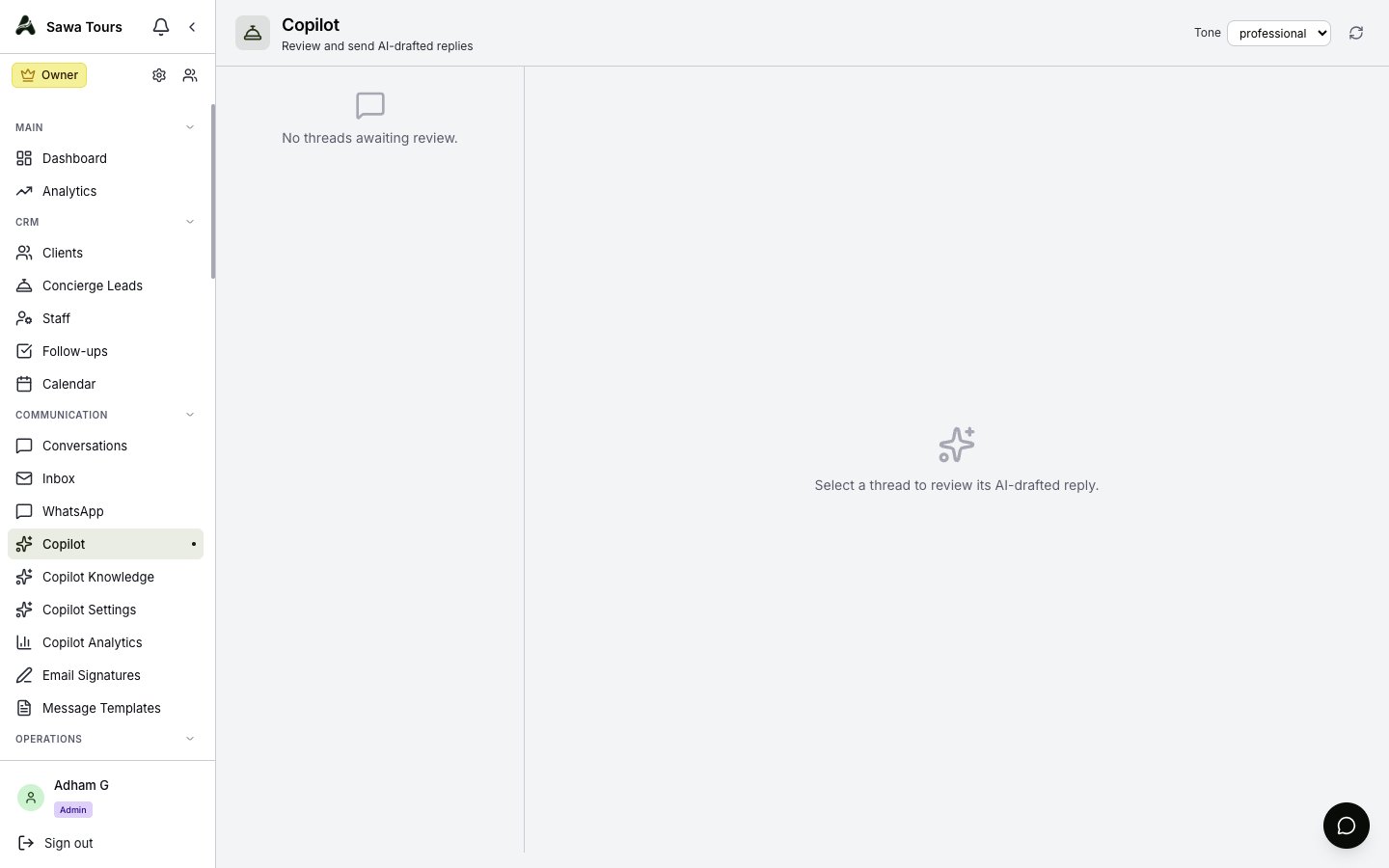
Copilot review queue: thread list on the left with channel icons and draft badges, review panel on the right, and the Tone selector in the header
Reviewing a Draft
Select a thread to open the review panel. It shows:
- Latest Customer Message — What the AI is responding to
- Context Card — A collapsible card with the linked client (VIP star when applicable), contact details, nationality and language, recent itineraries, invoices, and payments
- Escalation Banner — A red banner appears when the AI flags the conversation for escalation to a human
- Editable Draft — The AI’s suggested reply with a confidence badge (high, medium, or low). Edit it freely before sending
For each draft you can:
- Reject — Dismiss the draft
- Regenerate — Ask for a new draft, with a free-text instruction telling the AI what to change
- Approve — Accept the draft, including any edits you made
- Send — Deliver the approved reply
Screenshot: Review panel showing the customer message, expanded context card with client details, an editable AI draft with confidence badge, and the Reject / Regenerate / Approve / Send actions
Copilot Knowledge
The Copilot grounds its drafts in your own knowledge base. Open Copilot Knowledge in the sidebar to manage it:
- Four Entry Types — FAQs, Policies, Tours, and Custom, with per-type filter pills and counts
- Per-Entry Controls — Enable or disable each entry, edit it, or delete it
- Bulk Import — Paste long text and choose AI extract (the AI splits it into typed entries) or as-is (one entry). Long content is automatically chunked, and the result reports how many entries were created or failed
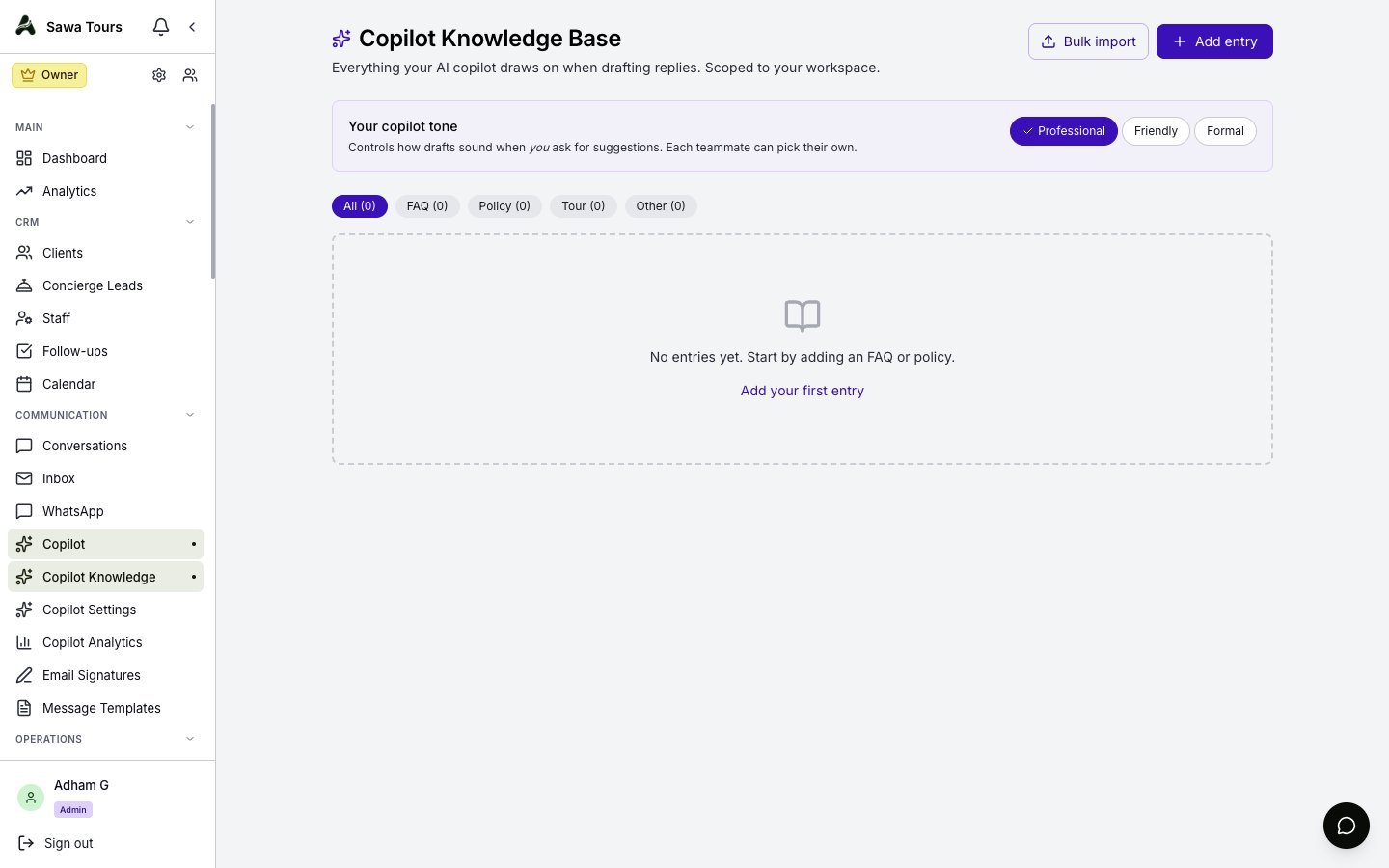
Copilot Knowledge page with type filter pills (FAQs, Policies, Tours, Custom) showing counts and a list of entries with enable/disable toggles
Copilot Settings
Under Settings → Copilot you’ll find two tenant-wide toggles. Only admins can change them; managers and agents see them read-only:
- Background Draft Pre-Generation — Prepares a draft automatically whenever a new WhatsApp or email message arrives, so a suggestion is already waiting in the queue. This is not auto-reply — nothing is sent without review
- WhatsApp Auto-Reply — A clearly-marked dangerous option that lets the bot answer WhatsApp messages without human review. It is off by default
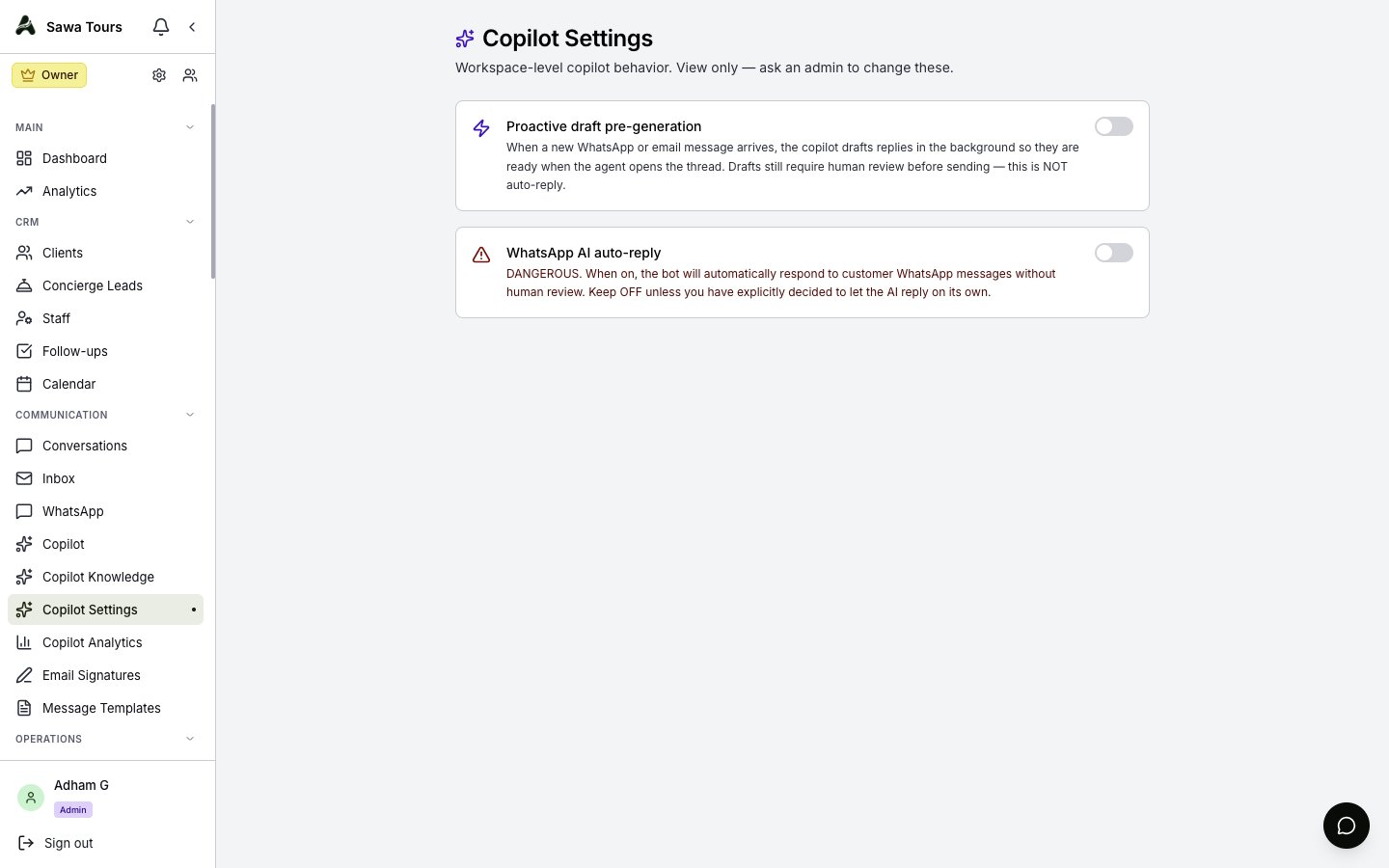
Copilot Settings page showing the background draft pre-generation toggle and the danger-marked WhatsApp auto-reply toggle
Copilot Analytics
Settings → Copilot Analytics shows how well the Copilot is performing. Filter by period (7d, 30d, 90d, or all):
- Volume Cards — Drafts generated, sent, dismissed, and pending
- Quality Metrics — Accept rate, edit rate, knowledge (RAG) hit rate, and the share of drafts that were pre-generated
- Daily Volume Chart — Draft activity over time
- Breakdowns — By channel, tone, and confidence level
- Top Knowledge Entries — Which knowledge base entries the AI retrieves most
- Per-User Table — Drafts reviewed, sent, and accept rate for each team member
Copilot Analytics with period filter, cards for drafts generated/sent/dismissed/pending, accept and edit rate metrics, daily volume chart, and breakdowns by channel, tone, and confidence
Copilot in the Inbox
You don’t have to work from the review queue — Copilot suggestions also appear inline in the WhatsApp inbox composer and the unified Conversations composer. See Communication for how the inboxes work, and Message Templates for reusable manual replies.