Workflows & Tips
From WhatsApp Inquiry to Confirmed Booking
The complete end-to-end workflow for handling a new client inquiry:
- Receive inquiry — The client messages on WhatsApp. The conversation appears in your WhatsApp inbox.
- Parse with AI — Open the conversation and click Parse. The parser opens with the chat already loaded — no copying and pasting. Click Analyze with AI to extract the trip details.
- Configure and confirm — Review the extracted details, choose the output (B2C quote, B2B quote, or itinerary only), and confirm the client (or click Create Client & Generate for a new one).
- Generate — Click Quick Generate for a one-shot itinerary, or Generate & Edit to open it straight in the editor.
- Review and edit — Adjust days, services, hotels, and pricing as needed.
- Send to client — Share the itinerary link or download the PDF and send it via WhatsApp or email.
- Client accepts — Open the quote's detail page (under B2C Quotes, or B2B Quotes for partners) and click Convert to Booking. Each quote can be converted once.
- Confirm suppliers — In the booking, track each supplier's confirmation status.
- Invoice and get paid — Create the invoice, send it, and record payments as they arrive.
- Complete trip — After the trip, mark the booking as completed and review the P&L.
Screenshot: Flow diagram showing the complete journey from WhatsApp message to completed booking
Working the Quote Pipeline
- Go to B2C Quotes to see every quote and its status
- Chase the ones the client hasn't answered — the dashboard's Quotes awaiting client card takes you to the same list
- When a client says yes, open the quote and click Convert to Booking
Bookings are always created from a quote's detail page — convert the quote rather than looking for a booking button elsewhere.
Following Up When a Client Reads Their Proposal
When you share an itinerary link, Autoura tracks when the client opens it. The dashboard's Clients reading their proposal panel shows who has been looking — the perfect moment to follow up:
- Check the Clients reading their proposal panel on the dashboard
- If a client opened the proposal recently, message or call them while the trip is fresh in their mind
- Log the touchpoint on the client's profile
Triaging Concierge Leads
- Go to Concierge Leads (Operate group) to see inbound briefs from your intake form
- Open a brief to review the trip request
- Follow up by WhatsApp or email, and create a client record for promising leads
Replying Faster with Copilot
- Open Copilot in the sidebar to see AI-drafted replies to incoming messages
- Review each draft, edit if needed, then send — nothing is ever sent without your approval
- In the WhatsApp inbox, Copilot suggestions also appear right in the composer
- Improve future drafts by adding facts to Copilot Knowledge and tuning Copilot Settings
Quick Quote (Under 5 Minutes)
- On the Dashboard, click New Quote — this opens a simple new-itinerary form
- Enter the client, dates, and number of travelers, then create the itinerary
- On the itinerary's detail page, add days and services, and use the Auto/Manual cost toggle — Auto prices everything from your rates database
- Click Download PDF and send it to the client
New Quote — on the Dashboard and in the sidebar (Sell group) — always opens the new-itinerary form: most sales start in an email or a WhatsApp and land in an itinerary. The spreadsheet-style quoting surface is its own entry, Pricing Grid, right below it.
Recording an Expense Against a Trip
- Open the itinerary
- Click Add Expense
- Enter the category, amount, and supplier
- The expense automatically appears in the itinerary's P&L
Chasing Payments
- Go to Receivables (Finance group) to see everything clients still owe
- Click the Send Reminder mail action on an overdue item — the reminder goes out by email
- To review past and scheduled reminders for an invoice, open the invoice and follow its Reminder History to the Payment Reminders page
The invoice detail page itself gives you Send via WhatsApp, Download PDF, Mark as Sent, and Record Payment.
Working with B2B Partners
Manage business-to-business relationships with other travel companies:
- Partners — Go to B2B > Partners to add partner companies, set pricing rules, and track performance
- B2B Quotes — Create quotes with net pricing, apply partner-specific rules, and generate B2B PDFs
- Pricing Rules — Set up partner-specific discounts, commission structures, and markup rules
Managing Tasks
Switch between three views using the buttons at the top of the Tasks page:
- Kanban Board — Drag tasks between columns (To Do, In Progress, Done)
- Table View — Spreadsheet-style list with sorting
- List View — Simple list with filters
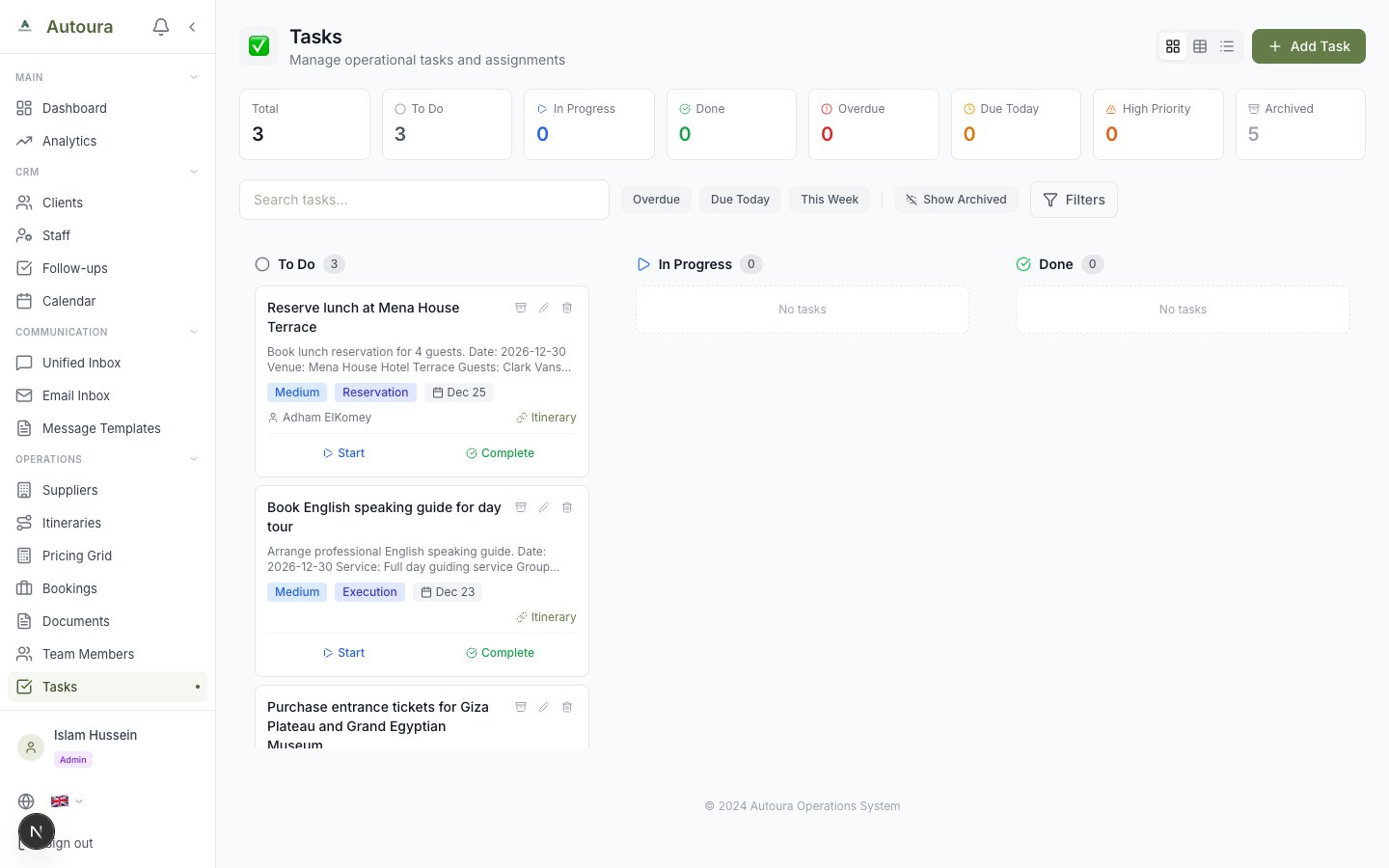
Task management page showing Kanban board with draggable task cards
Tips & Shortcuts
- Status cards are clickable — On any list page, click the status cards at the top to quickly filter
- Auto-pricing saves time — Keep your rates database updated and use Auto cost mode on the itinerary page for instant pricing
- Link everything — Link expenses to itineraries, tasks to clients, and commissions to services for a complete picture
- PDF downloads are instant — PDFs are generated in your browser, no waiting for server processing
- WhatsApp is two-way — Clients can reply to your WhatsApp messages and those replies appear in your inbox
- The search bar works everywhere — Every list page has a search bar that searches across multiple fields
- Expand days for details — On itinerary pages, click a day to expand it and see all services
- Check for conflicts — When assigning guides or vehicles, the system warns you about scheduling conflicts
Need Help?
If you run into any issues or have questions:
- Message the Autoura team via the floating Support Chat widget on any page — you'll be notified by email when they reply
- Check this documentation for step-by-step instructions
- The system shows helpful error messages when something goes wrong