Suppliers
The Suppliers page is your central directory of every company and individual you work with — hotels, transport companies, guides, cruises, restaurants, and more. You’ll find it in the sidebar under Suppliers & Rates; it’s available to admin and manager roles.
Supplier Types
Every supplier belongs to one of 12 types:
Each supplier also carries a status — active, inactive, or pending — so you can keep old contacts on record without them cluttering your working list.
Parent companies and properties
Hotels, restaurants, and cruises are hierarchical: a parent company can own child properties. For example, a hotel chain is stored once as the parent company, with each individual hotel added as a property under it. The supplier form includes a parent-company selector for this, and the directory has properties only / companies only toggles to filter by level.
Browsing the Directory
The directory offers three views — grid, table, and list — with pagination for large directories. You can:
- Sort by name, type, city, status, or commission
- Filter by type — the selected type is mirrored in the URL, so you can bookmark or share a filtered view
- Search across supplier name, contact name, and contact email
- Toggle between properties only and companies only
The header carries two actions: Export downloads the directory as CSV, and Add Supplier opens the creation form.
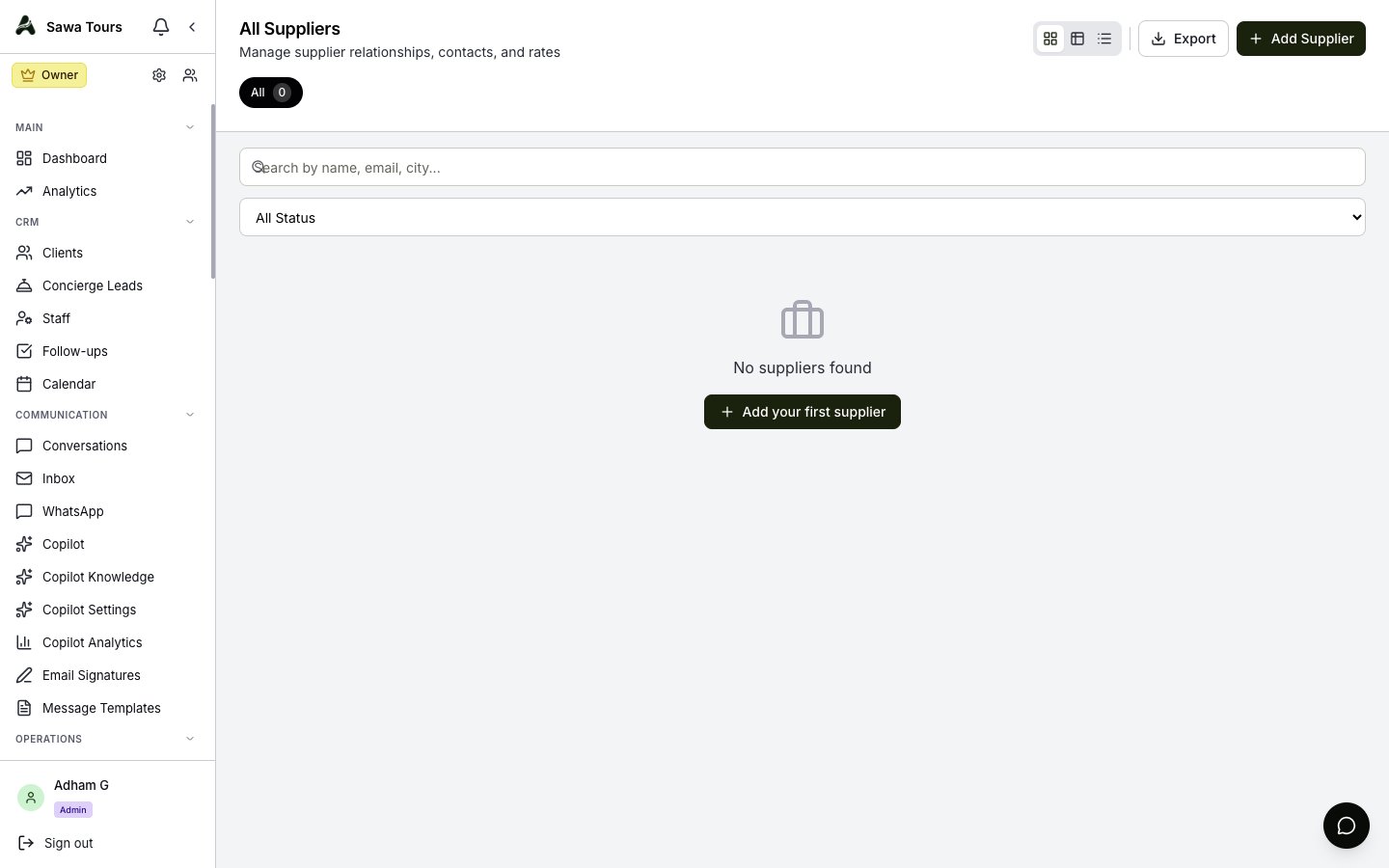
Suppliers directory in grid view with the type filter, search bar, and the Export and Add Supplier buttons in the header
The supplier code (SUP-####)
Every supplier is given a short, stable code — SUP-0001, SUP-0002, and so on — assigned automatically in order. It is yours to edit if you keep your own numbering, as long as it stays unique.
This code is what makes rates portable. A supplier’s internal id is unique to this install, so it means nothing anywhere else; the SUP-#### code travels with the supplier. When you export rates and import them elsewhere, each rate carries its supplier code and re-attaches to the supplier with the matching code — instead of every rate becoming an orphan you re-link by hand.
Importing & exporting suppliers
Alongside Export, the directory has Sample CSV and Import. Import reads a filled-in sheet, matching each row on its supplier code so an existing supplier updates rather than duplicates, and everything lands in your own organization’s directory.
Adding a Supplier
The supplier form adapts to the type you pick. Type-specific fields draw on canned lists so data stays consistent:
- Egyptian cities for locations
- Vehicle types for transport companies and drivers
- Guide languages for guides
- Cuisine types for restaurants
- Nile cruise routes for cruises
For hotels, restaurants, and cruises, use the parent-company selector to attach a property to the company that owns it.
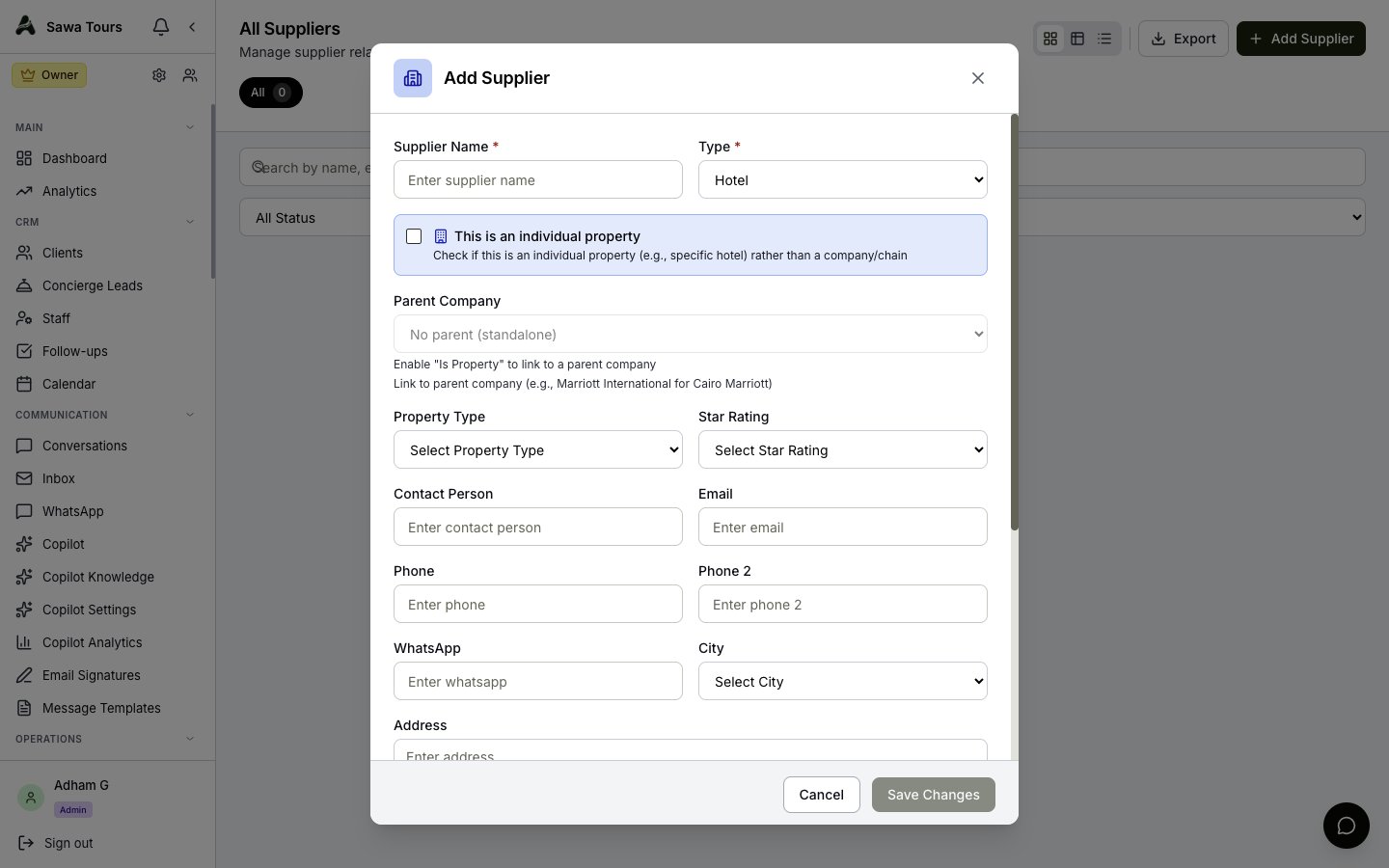
Add Supplier form with the type selector and type-specific fields
Viewing a Supplier
Opening a supplier shows a view modal with four tabs:
- Details — Contact information, type, status, and commission
- Rates — Rates associated with this supplier
- Properties — The ships, hotels or trains the supplier operates. A hotel property also carries its accommodation type (resort, camp, and so on, from Settings → Your vocabulary), which hotel rates inherit when you pick the property.
- Documents — The contracts, rate sheets, allotment agreements, licences and insurance you hold with the supplier. Upload a PDF, image, Word or Excel file, set its validity dates, and optionally tie it to one of the supplier’s properties (a specific ship or hotel). Documents ending within 60 days are flagged Expiring soon; files open through a short-lived private link, never a permanent URL.
Screenshot: Supplier view modal on /suppliers showing the Details, Rates, Properties, and Documents tabs
Suppliers and Money
The financial side of your supplier relationships lives elsewhere: record what suppliers bill you under Supplier Invoices (/supplier-invoices) and track what you owe under Payables (/accounts-payable). Both are documented in Invoices & Payments. Supplier costs on trips are covered in Expenses & Commissions.