Tasks, Departures & Capacity
Three tools keep day-to-day operations on track: Tasks for team to-dos, Tour Departures for scheduled group departures, and the Capacity calendar for controlling how much your operation takes on per date. All three live in the sidebar under Operate — Tasks and Departures for admin and manager roles, the Capacity Calendar (right under Tour Departures) admin-only.
Tasks
The Tasks page (/tasks) tracks your team’s work in three views — Kanban, Table, and List. Every task has:
- Status — To Do, In Progress, or Done
- Priority — low, medium, high, or urgent
- Assignee and due date — who does it and by when
Metric cards at the top show the totals at a glance: total tasks, overdue, due today, and high priority. Below them you can filter by search, status, priority, assignee, and due date, plus a Show archived toggle. The table view supports sorting and pagination.
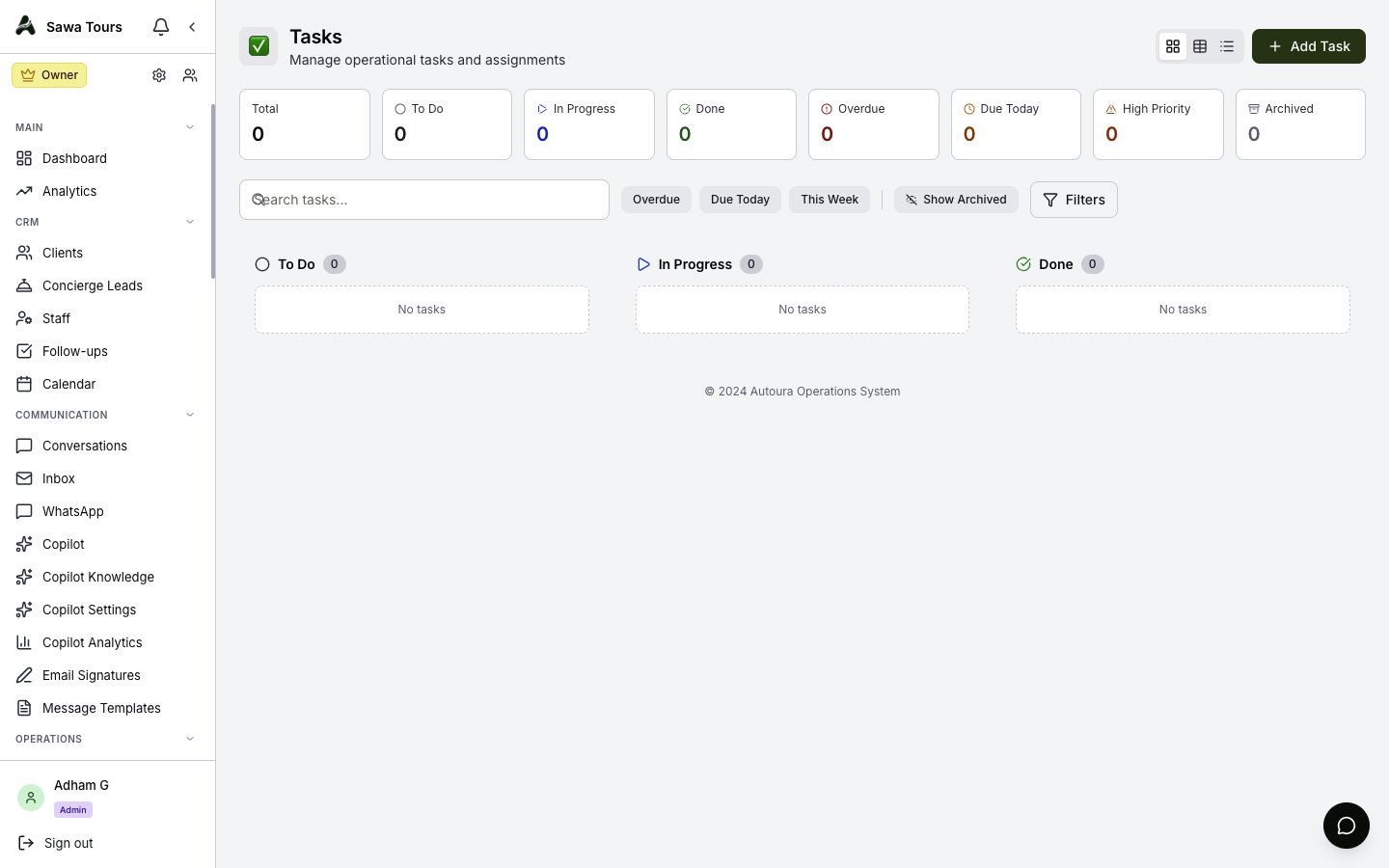
Tasks page in Kanban view with metric cards across the top, the filter bar, and the To Do / In Progress / Done columns
Linking tasks to records
A task can be linked to an itinerary, client, invoice, or expense. The linked record shows on the task row and links straight through, so “chase payment for invoice X” is one click from the invoice itself.
Assignment notifications
Assigning a task to a team member notifies them with an in-app notification that includes the due date, so nothing relies on someone remembering to check the board.
Archiving and deleting
Finished tasks are soft-archived rather than destroyed — use the Show archived toggle to bring them back into view, and the bulk action to archive all done tasks in one go. Hard delete is also available and asks for confirmation first.
Tour Departures
The Departures page (/departures) lists your scheduled group-tour departures, each optionally linked to a tour template (see Tour Programs). Every departure carries a status with a colored badge:
The list defaults to the Upcoming filter and can be searched by tour name. Each row shows the start date, duration, tour code, capacity as booked/max with spots remaining, an occupancy bar (yellow at 80% or more, red at 100% or more), and the price per person. You can change status inline from a dropdown on the row (hidden once a departure is cancelled or full) and delete with a confirmation.
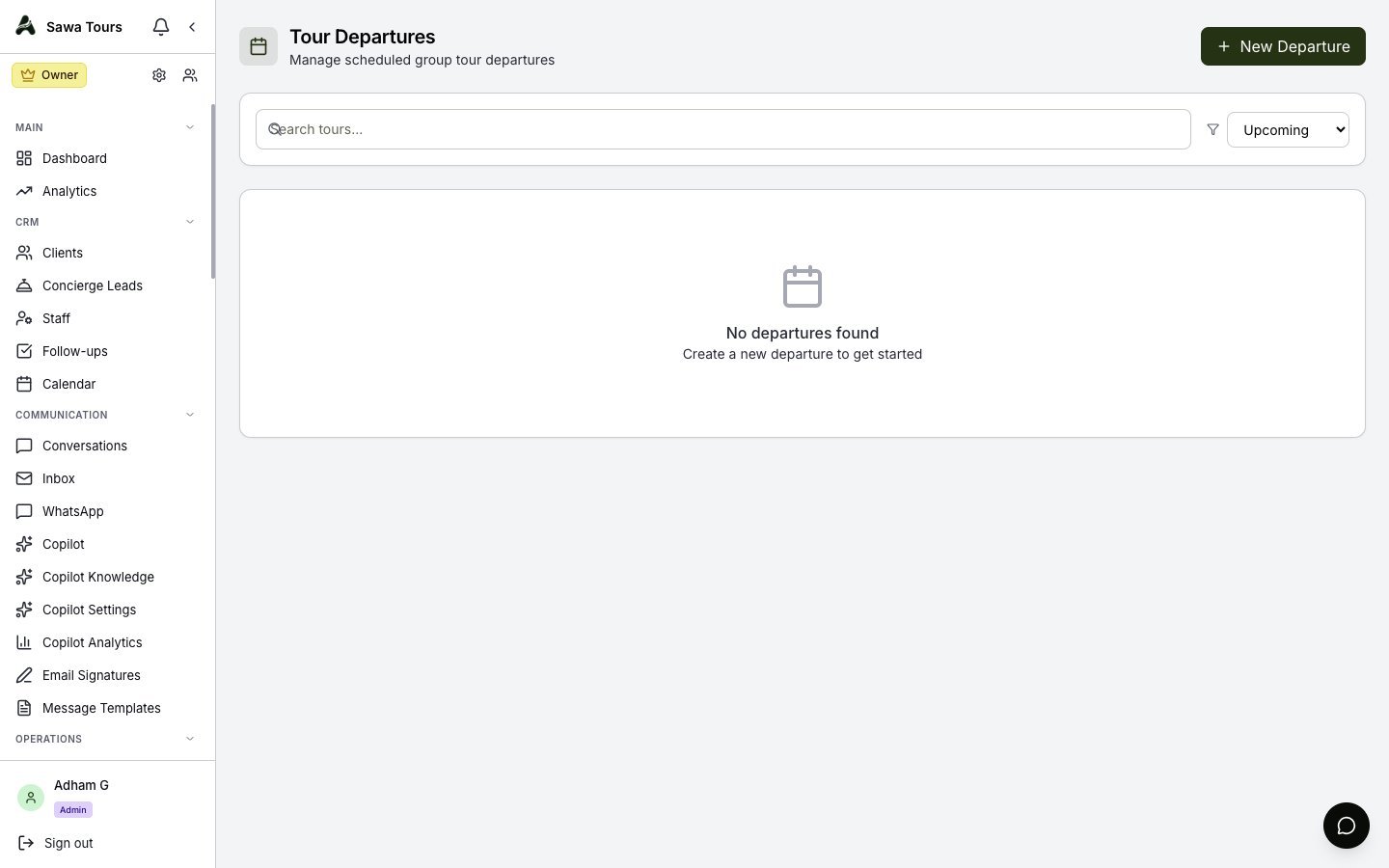
Departures list with rows showing status badges, booked/max capacity with spots remaining, occupancy bars, and price per person
Creating a departure
The New Departure modal takes a tour template, name, start date, duration, maximum and minimum pax, price per person, and the initial status.
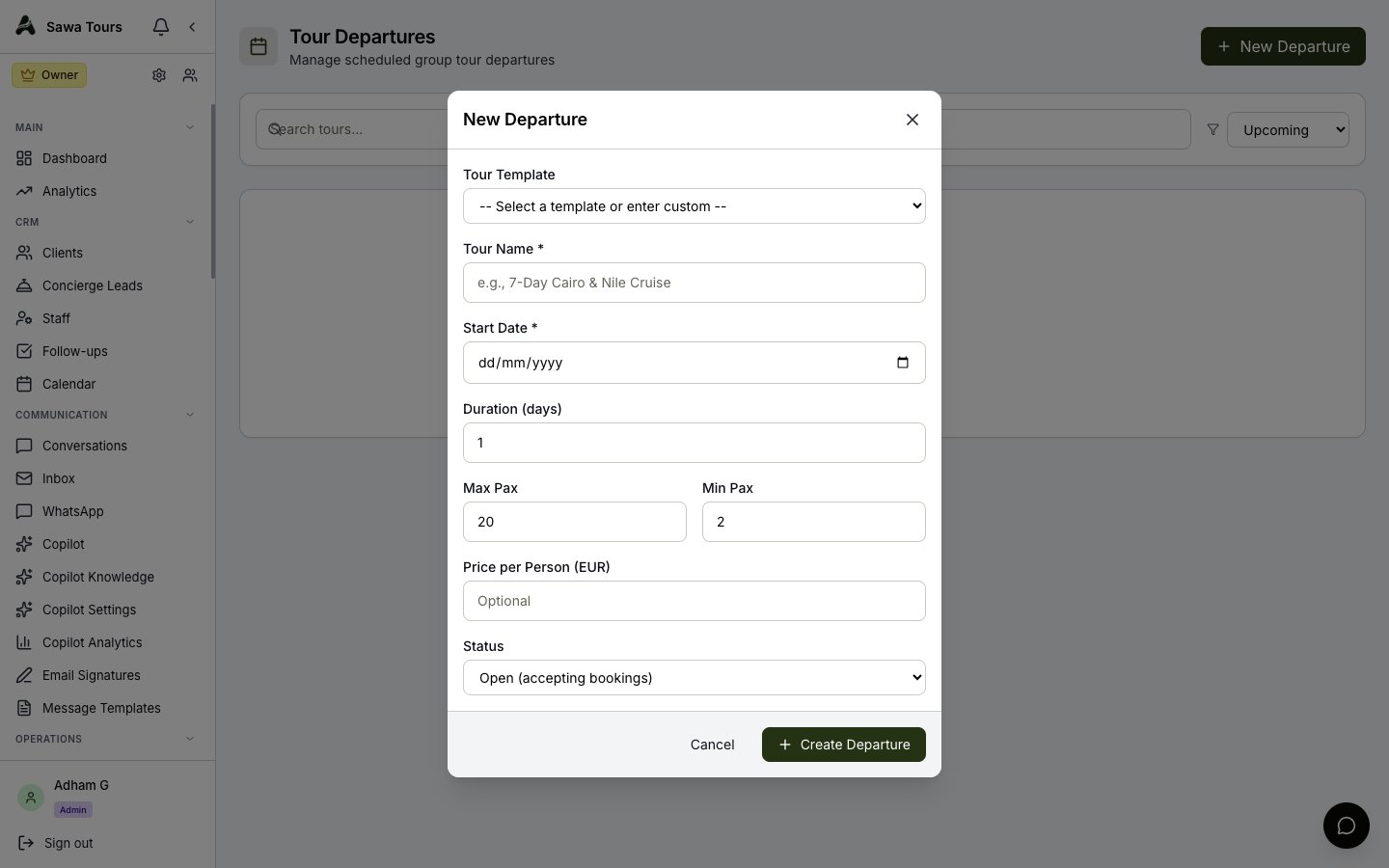
New Departure modal showing template, name, start date, duration, max/min pax, price per person, and status fields
Capacity Calendar
The Capacity page (/settings/capacity, admin-only) is a month calendar with two views — General Capacity and Tours.
General Capacity
Each date gets a status — available, limited, busy, or blackout — plus per-date limits for maximum groups, guides, and vehicles, and a blackout reason where relevant. Edits are staged as you click through dates, then written all at once with the Save N Changes button.
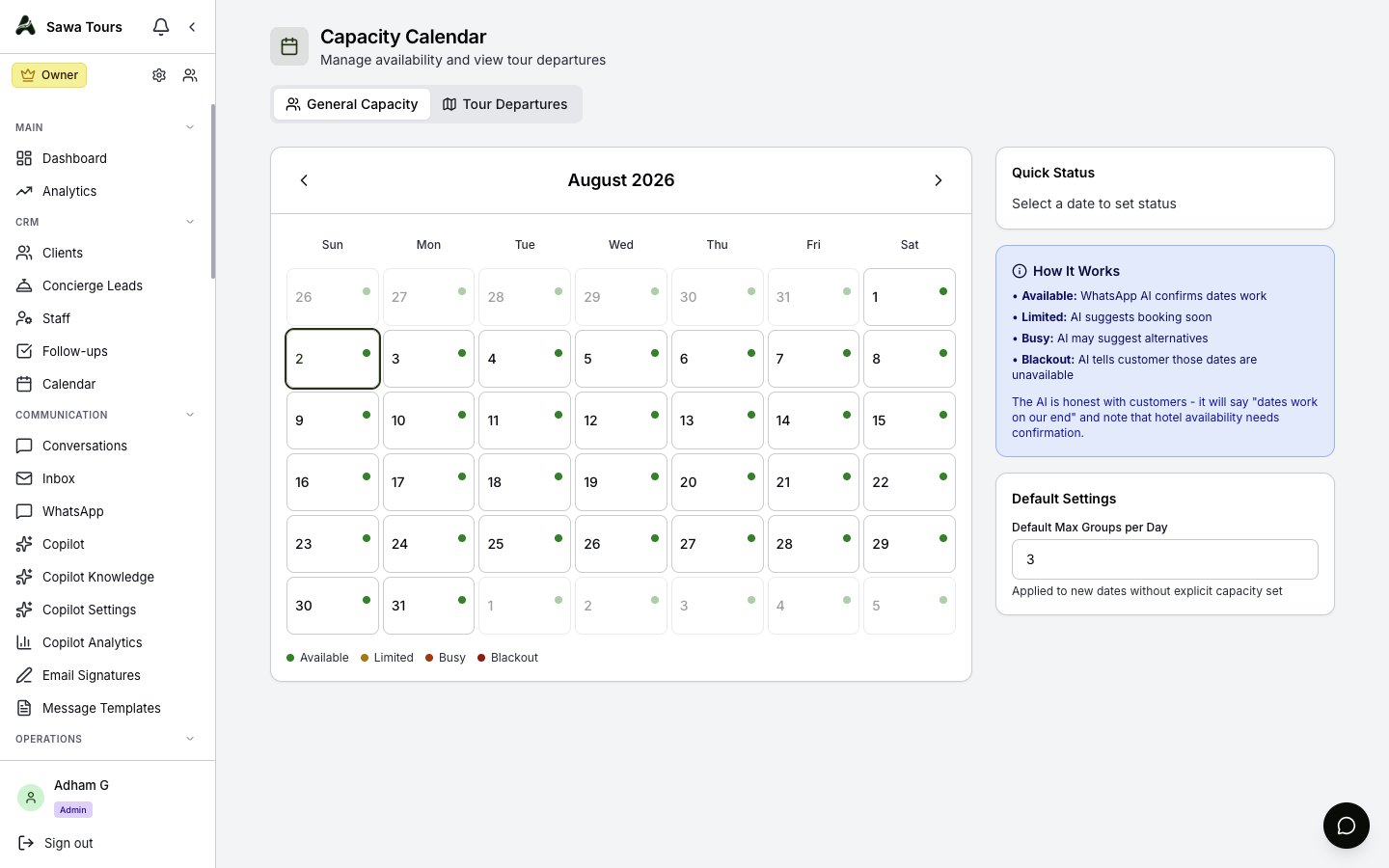
Capacity calendar in General Capacity view showing a month with date statuses (available/limited/busy/blackout) and per-date capacity settings
Tours view
The Tours view overlays your departures on the same calendar, listing the departures on each date and linking through to /departures.