Concierge Leads
When a visitor chats with the AI Concierge on your website, the conversation is distilled into a structured planning brief and delivered straight to your team. The Concierge Leads page is where you triage those briefs and respond.
Overview
Open Concierge Leads in the sidebar (Operate group). Briefs arrive automatically — there is nothing to import. The page is organized into tabs with live counts:
- Needs Review — New briefs nobody has picked up yet
- In Progress — Briefs someone is actively working
- Responded — Briefs you have answered
- Archived — Briefs you have set aside
- All — Everything in one list
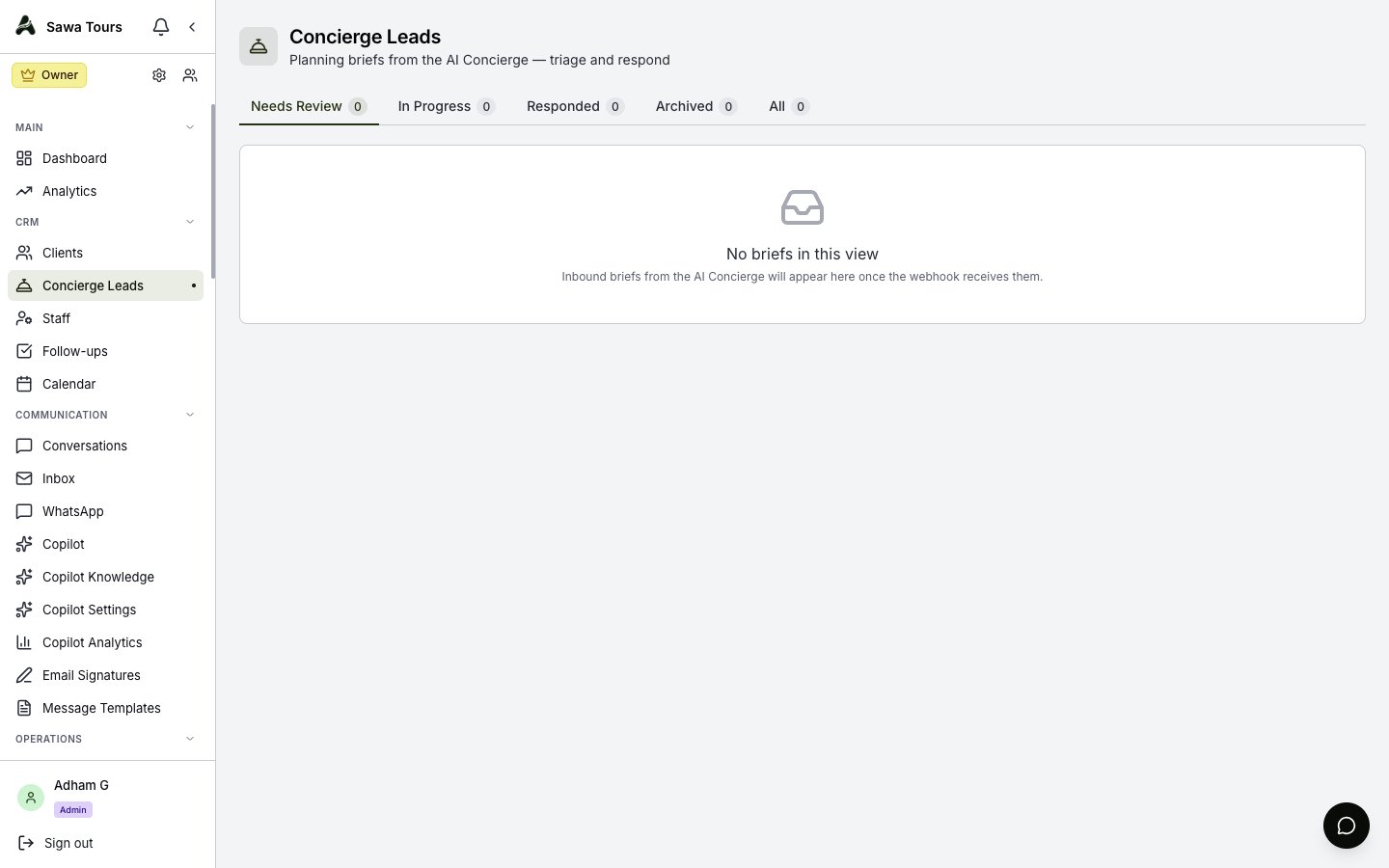
Concierge Leads page with the Needs Review / In Progress / Responded / Archived / All tabs showing live counts, and a list of brief cards
Reading a Brief Card
Each card summarizes a brief at a glance:
- Visitor & Status — The visitor’s name and a status badge; a red “No contact” badge appears when the visitor left no contact info, and a revision number when the visitor updated their brief
- SLA Badge — Shows overdue when the committed response time has passed, soon when 2 hours or less remain, and met once you’ve responded
- Contact Details — How to reach the visitor
- Trip Facts — Travelers, dates (or a travel window), destinations, and comfort level
- Summary & Chips — A short summary plus chips for interests and any dietary, mobility, religious, or medical constraints
Screenshot: A single brief card showing visitor name, status and SLA badges, contact details, trip facts (travelers, dates, destinations, comfort level), summary, interest chips, and constraint chips
Moving Briefs Through the Flow
Each status offers the next steps directly on the card:
- Needs review → Start review or Archive
- In progress → Mark responded or Archive
- Responded → Reopen or Archive
- Archived → Reopen
The Details Drawer
Open a brief to see everything the Concierge captured:
- Full Contact — Preferred channel, timezone, nationality, and language
- Trip Details — Including origin city and international flights
- Preferences — Must-see and must-avoid lists
- Constraints — Dietary, mobility, religious, and medical needs
- Response Window — The committed-by time, shown in Cairo time and the visitor’s local time
- Chat Transcript — The full Concierge conversation as chat bubbles, plus metadata
Screenshot: Details drawer open on a brief: full contact section, trip details, preferences, constraints, response window in two timezones, and the chat transcript rendered as bubbles
Turning a Brief into an Itinerary
The drawer footer has a Create itinerary button that builds an itinerary directly from the brief. It is safe to click once — it will not create duplicates, and afterwards it becomes View itinerary (CODE) linking to the itinerary it created. When the visitor is linked to a client record, a View client button appears alongside it.
Screenshot: Details drawer footer showing the Create itinerary button (and the View itinerary state after creation) plus the View client button
From there, continue in Itineraries to price and refine the trip, and use Communication to reply to the visitor on their preferred channel.