Communication
Everything you use to talk with clients lives in the Communicate group in the sidebar: Conversations, Inbox (email), WhatsApp, Copilot and its knowledge base, Message Templates, Email Signatures, and the Content Library.
Conversations (Unified View)
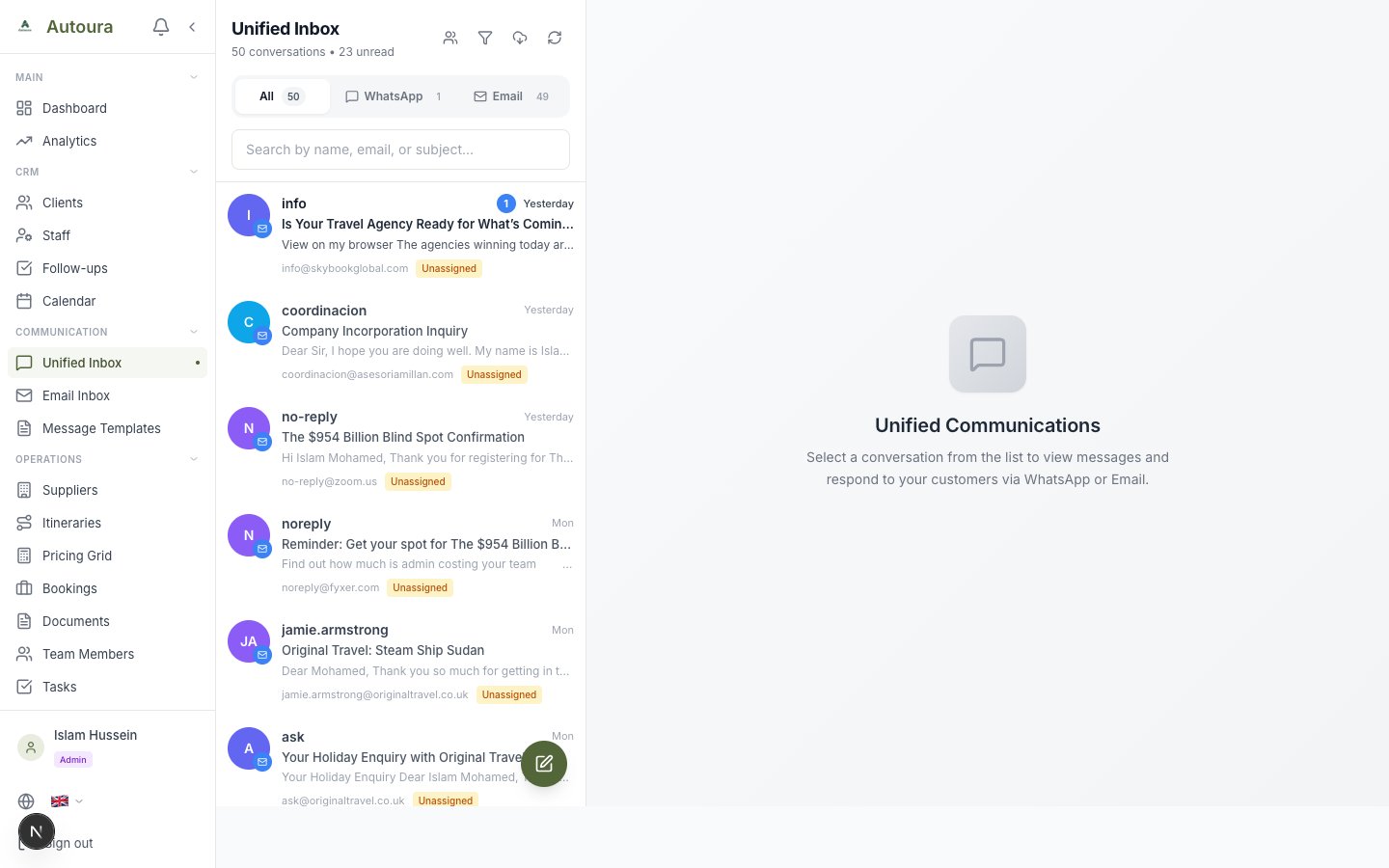
Conversations is the first item in the Communicate group. It brings your WhatsApp chats and email threads together in one box, so you can see every exchange with a client regardless of channel. Use it when you want the full picture; use the dedicated WhatsApp and Inbox pages when you're working a single channel.
Manage all your WhatsApp business conversations in one place. When a client sends a message to your business WhatsApp number, it appears here automatically.
Using the Inbox
- Go to WhatsApp in the sidebar (under Communication)
- The left panel lists conversations with the latest message preview. Use the All, Mine, and Unassigned tabs to filter by assignment.
- Click a conversation to open the full chat on the right
- Type your reply at the bottom and send
WhatsApp inbox with All/Mine/Unassigned tabs, conversation list on the left, and an open chat with translation controls on the right
Features
- Two-way AI translation — Set the customer's language and your own, then toggle Translation ON or OFF. Incoming messages can be translated per message (Translate / Show Original), and when you type a reply you see a “Will send:” preview of the translated text before it goes out.
- Assignment — Claim a conversation or assign it to a specific team member, then filter with the All/Mine/Unassigned tabs
- Copilot suggestions — An AI-suggested reply appears in the composer panel; review and use it, or ignore it and write your own
- Client / Create buttons — In the conversation header, Client opens the linked client's profile, and Create starts a new client record with the phone number already filled in
- Activity History — See what has happened on the conversation over time
- Start a new chat — Open an outbound conversation to a new number
- Delete conversation — Remove a conversation you no longer need
WhatsApp Parser (AI)
The AI parser reads a WhatsApp conversation and extracts all the trip details automatically. This is the fastest way to turn a client inquiry into a professional quote — no copying and pasting needed.
How to Use It
- Open the conversation in the WhatsApp inbox and click Parse — the parser opens with the conversation already loaded
- Step 1 — Analyze: Click Analyze with AI. The AI extracts:
- Client name, email, phone
- Nationality
- Desired travel dates and duration
- Number of travelers (adults and children)
- Cities and interests
- Budget tier
- Special requests
- Step 2 — Configure: Review the extracted details, pick the budget tier, and choose the output: a B2C quote, a B2B quote, both together, or an itinerary only (add quotes later)
- Step 3 — Confirm Client: Match the inquiry to an existing client, or review the new client details and click Create Client & Generate
- Step 4 — Generate: Click Quick Generate to build the itinerary in one go, or Generate & Edit to open it in the editor straight away
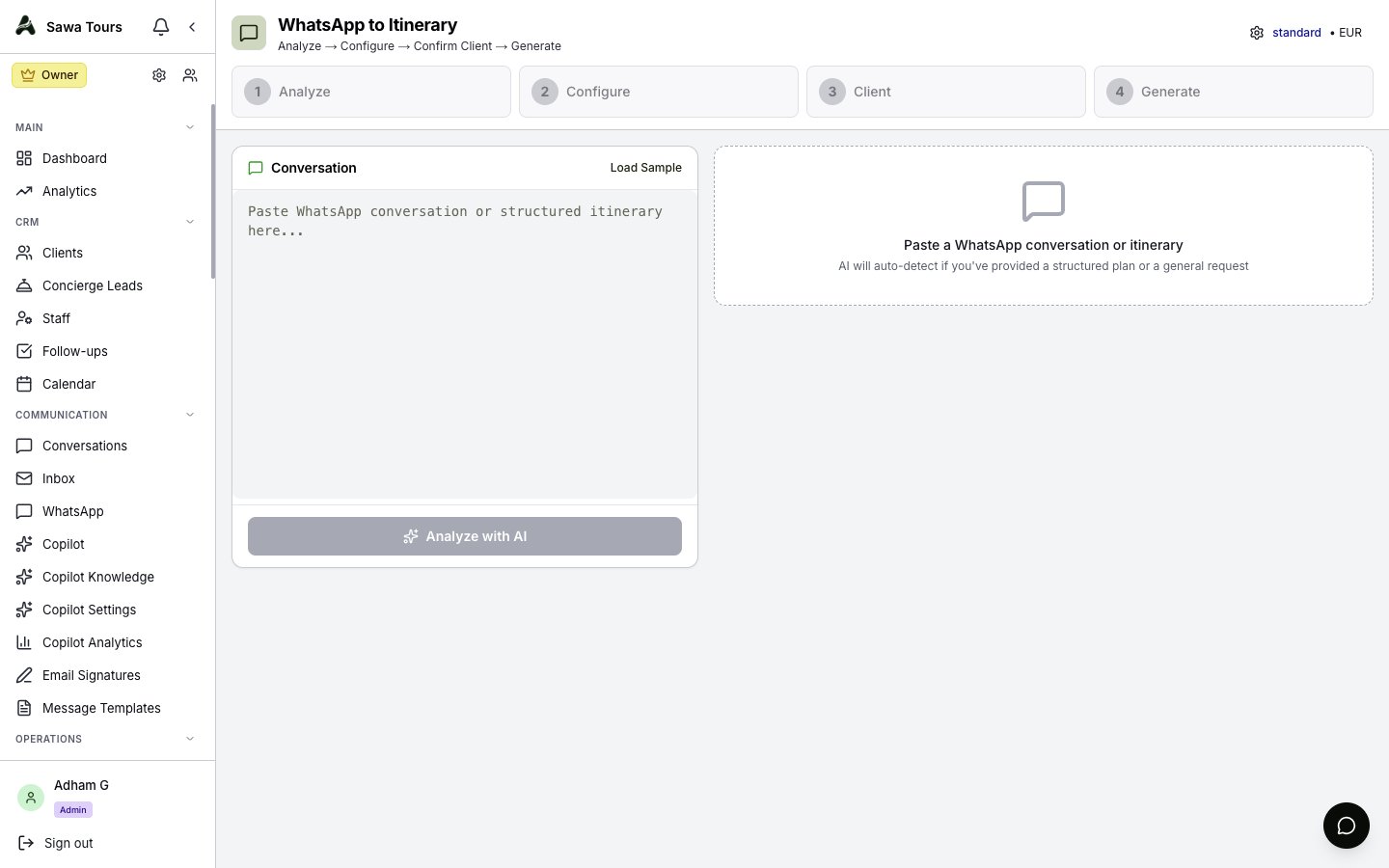
WhatsApp Parser wizard opened from a conversation, showing the 4-step flow (Analyze, Configure, Confirm Client, Generate) with extracted trip details
Email Inbox
Manage your business emails directly within Autoura.
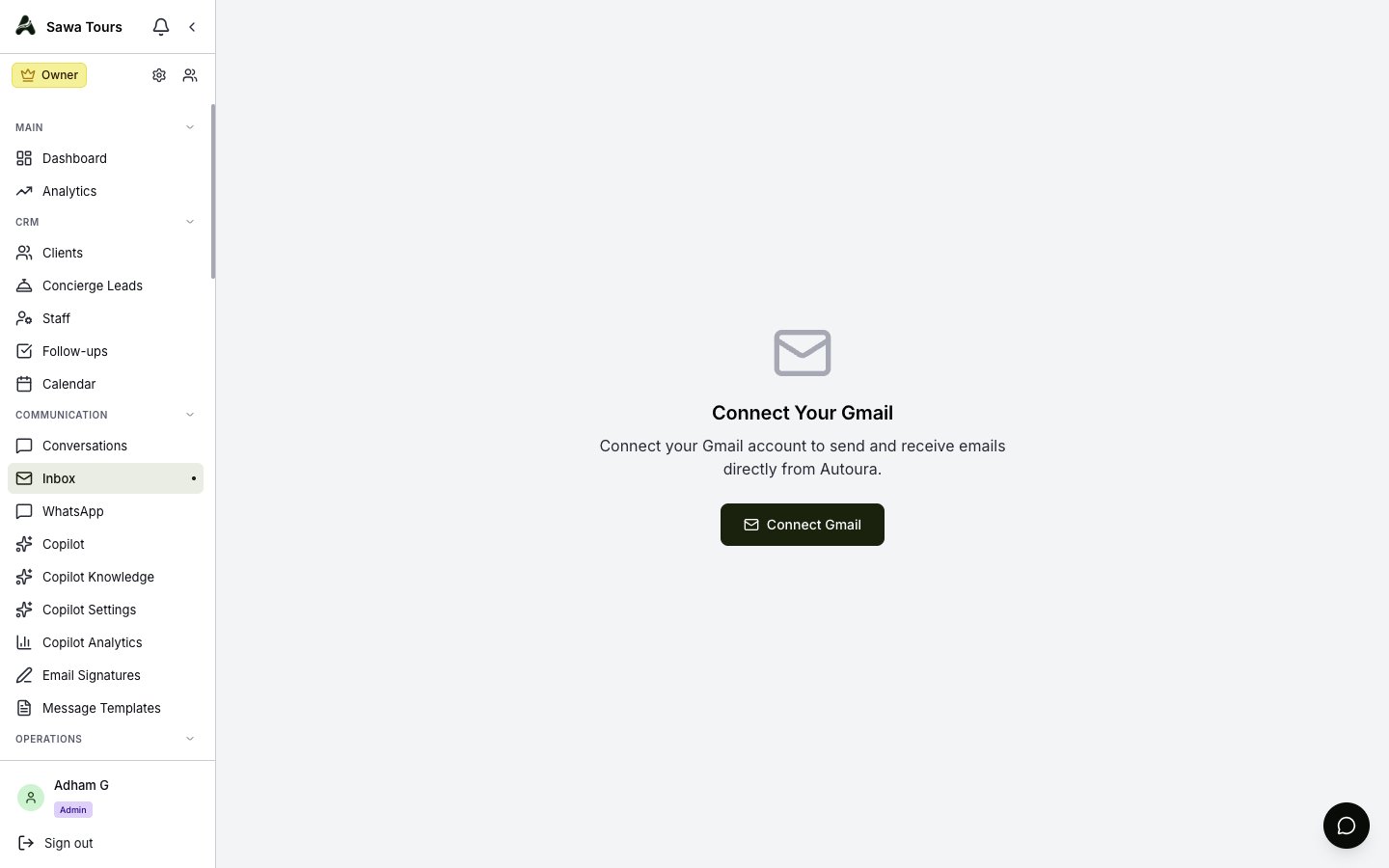
Connecting Gmail
- Go to Settings and open the Email tab
- Click Connect Gmail
- Sign in with your Google account and grant access
Using the Inbox
Go to Inbox in the sidebar to see your emails. You can:
- Read and reply with a rich text editor (formatting, links, images)
- Send new emails
- Insert a message template from the templates dropdown when composing
- Have your default email signature applied automatically
- View email threads
- Use Gmail labels for organization
- Download attachments
- Link emails to client records
Email inbox showing the message list with sender, subject, and preview for each email
Copilot (AI-Drafted Replies)
Copilot drafts replies to incoming messages for you — you always review and send; nothing goes out automatically. The suite has four pages; the first two sit in the Communicate group, Copilot Settings under Settings (admins), and Copilot Analytics under Home:
- Copilot — The review queue: read each drafted reply, edit it if needed, and send or dismiss it
- Copilot Knowledge — The facts and documents Copilot draws on when drafting
- Copilot Settings — Control how and when Copilot drafts
- Copilot Analytics — See how much Copilot is helping
Email Signatures
Set up personal and team email signatures under Email Signatures in the sidebar. Your default signature is added automatically when you compose or reply from the Inbox.
Concierge Leads
Inquiries submitted through your concierge intake form arrive as briefs under Concierge Leads (in the Operate group). Treat it as another inbound channel: review each brief, then follow up by WhatsApp or email.
Need Help?
Use the floating Support Chat widget (bottom corner of every page) to message the Autoura support team — replies land back in the widget and you're notified by email.