Invoices & Payments
Viewing Invoices
Go to Invoices in the sidebar. Summary cards at the top show Paid and Overdue totals plus deposit and final invoice counts. Filter by status: Draft, Sent, Partial, Paid, Overdue, or Cancelled. (Invoices also show a “Viewed” status once the client has opened them, though it is not a filter option.)
Each invoice shows: invoice number, client name, type, issue date, due date, amount, amount paid, balance due, and status.
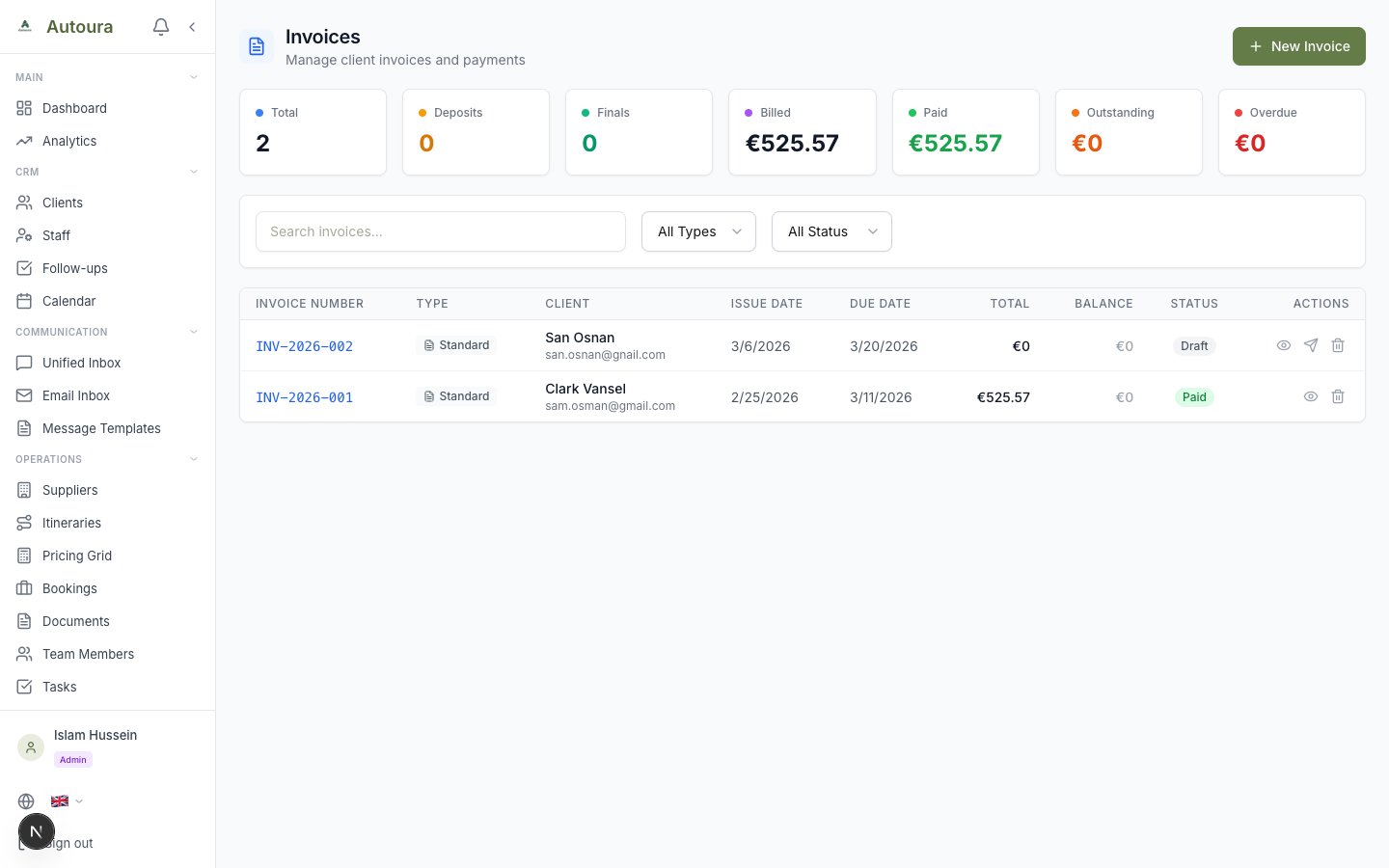
Invoices list page with summary cards, status filters, and invoice table
Creating an Invoice
The easiest way to create an invoice is from an itinerary:
- Open the itinerary
- Click the invoice icon button (the tooltip reads Generate Invoice, or View plus the invoice number if one already exists)
- The invoice is created with all line items from the itinerary
Invoice Types
- Standard — Full amount invoice
- Deposit — Partial payment (typically 30%)
- Final — Remaining balance after deposit
Deposit and final invoices are cross-linked: each one shows a banner linking to its counterpart.
Invoice Detail Page
The detail page shows:
- Invoice number and status
- Client information
- Line items with quantities, prices, and totals
- Tax calculation (if applicable)
- Discount (if applicable)
- Amount Paid and Balance Due figures
- Payment history with dates, amounts, and methods — each completed payment offers a receipt download
- A read-only Reminder History linking to the Payment Reminders page (see Follow-ups & Reminders)
Screenshot: Invoice detail page with line items, Amount Paid / Balance Due, payment history, and Reminder History
Invoice Actions
| Action | What It Does |
|---|---|
| Send via WhatsApp | Sends the invoice on WhatsApp |
| Download PDF | Creates a professional invoice PDF |
| Mark as Sent | Moves a draft invoice to Sent status (drafts only) |
| Create Final Invoice | Creates the final balance invoice from a deposit invoice |
| Record Payment | Record a payment received against the invoice |
Recording a Payment
- Open the invoice
- Click Record Payment
- Enter:
- Amount
- Payment date
- Payment method (Bank Transfer, Airwallex, Tab, Credit Card, Cash, PayPal, Stripe, Wise)
- Transaction reference (optional)
- Notes (optional)
- Click Record Payment to save
Screenshot: Record Payment dialog with amount, date, method, and reference fields
Payment Tracking
Go to Payments in the sidebar to open the Payment Tracking page — a unified list of both invoice payments and itinerary payments. You can:
- Search payments
- Filter by Source (Invoice Payments or Itinerary Payments)
- Filter by Payment Method
- Create a new standalone payment
- Jump to the linked invoice or itinerary
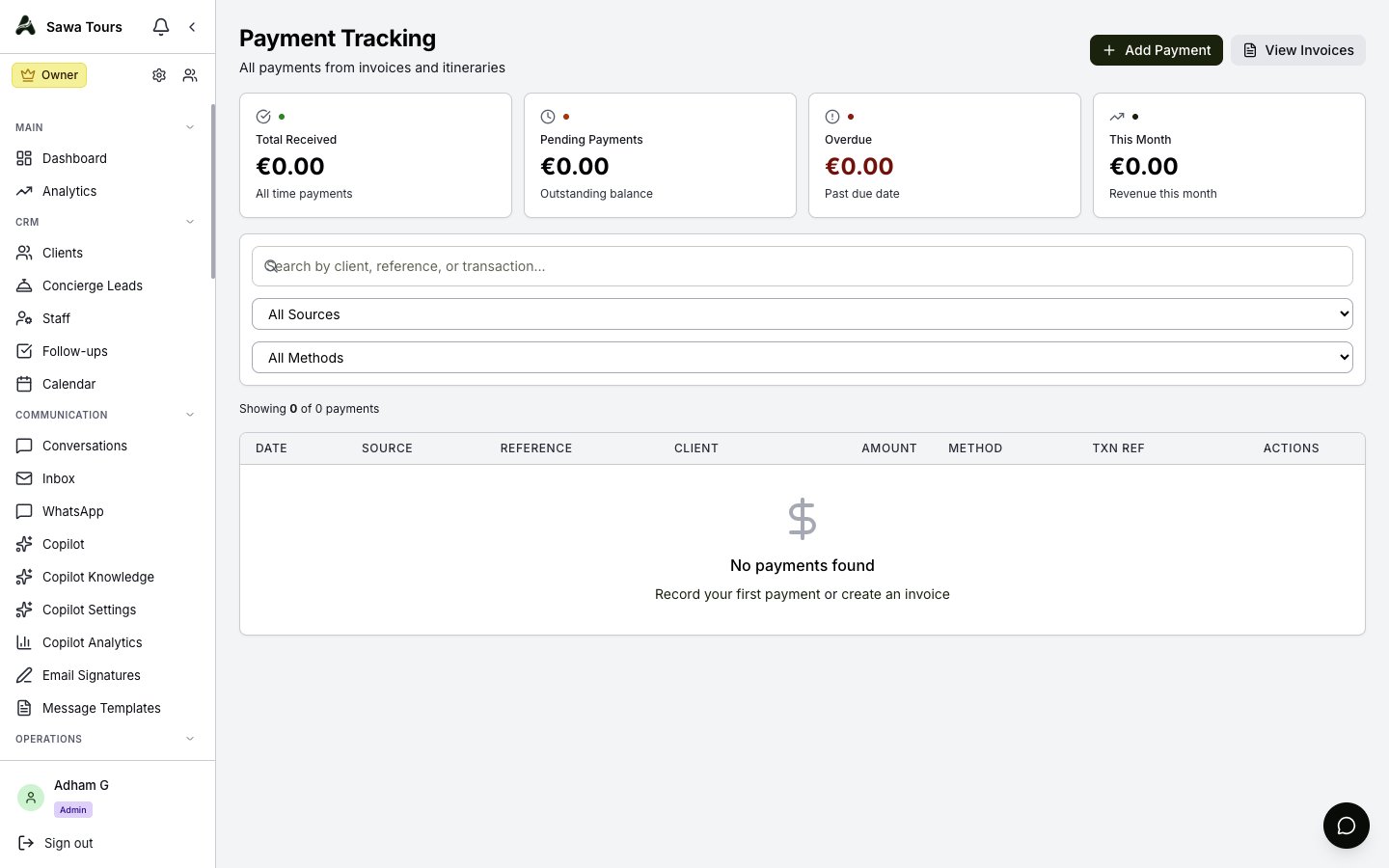
Payment Tracking page with unified invoice and itinerary payments, source and method filters
Receipts
The Receipts page lists a receipt for every completed payment, with totals cards, search, and a download for each receipt. You can also download a receipt for an individual payment directly from the invoice detail page.
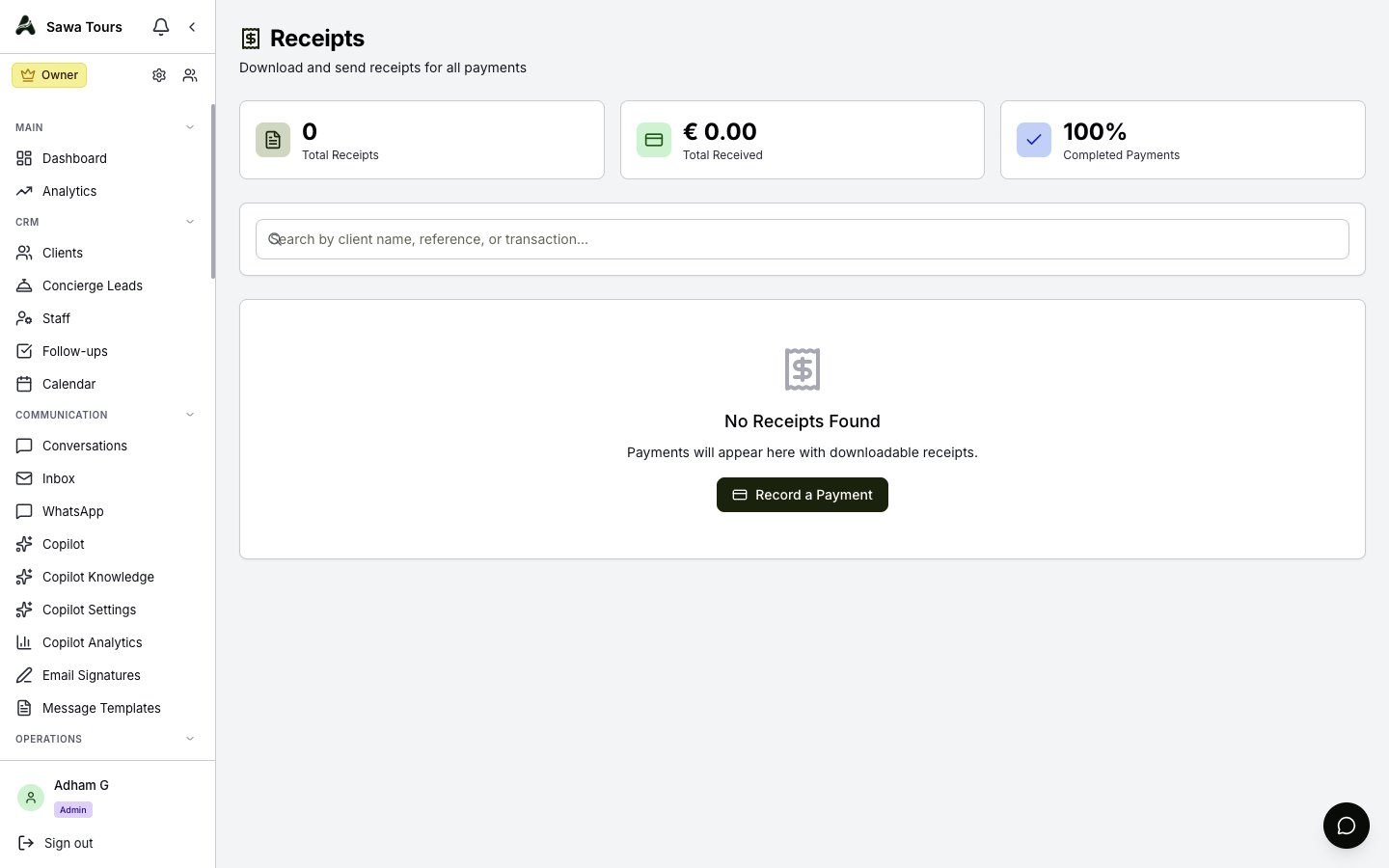
Receipts page with totals cards, search, and per-payment receipt downloads
Receivables
Receivables is an accounts receivable aging report of what clients owe you, bucketed into Current, 1-30 Days, 31-60 Days, and 90+ Days. Filter by aging bucket, and use the Send Reminder action to email a payment reminder for an outstanding invoice.
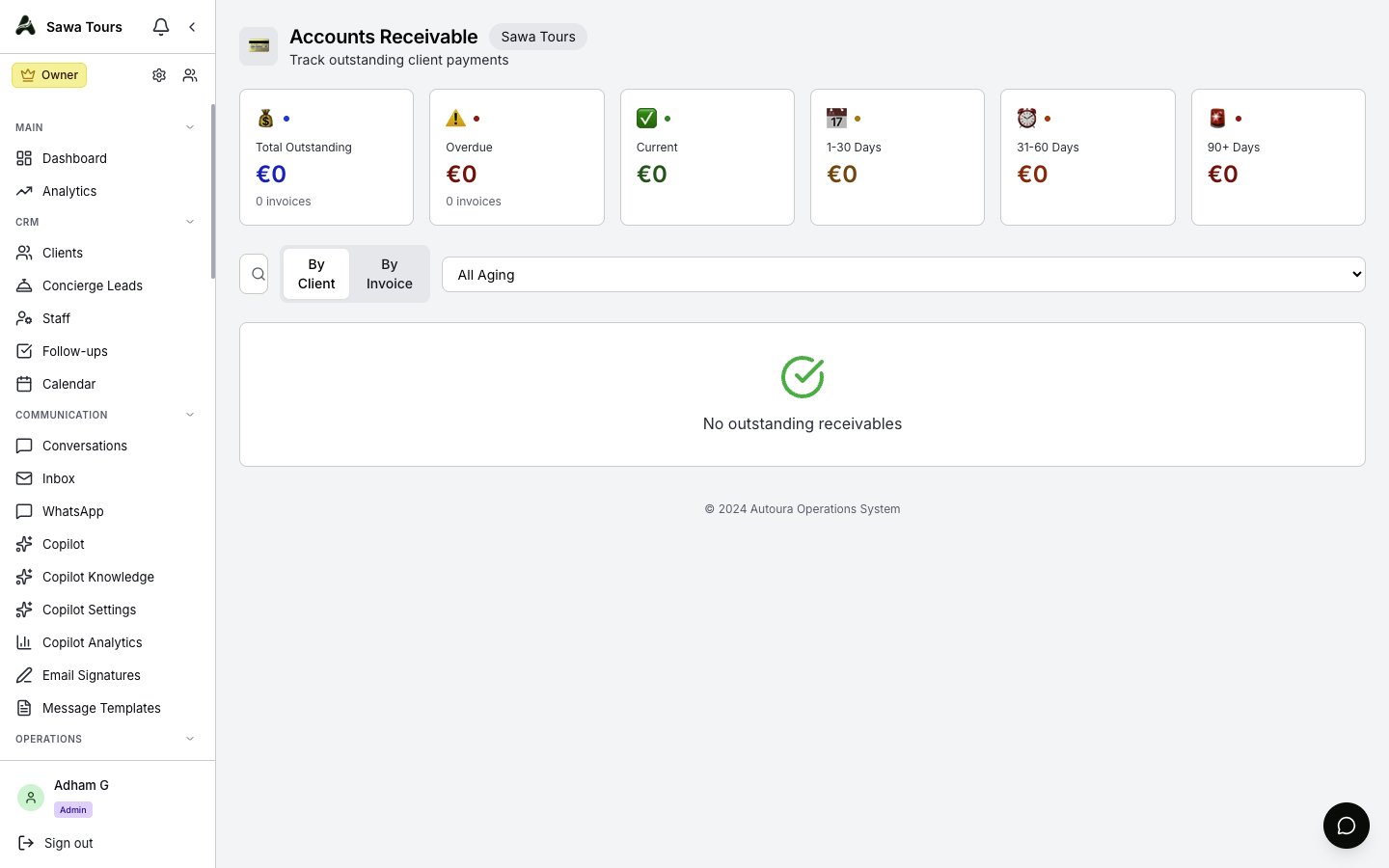
Accounts Receivable aging report with Current, 1-30, 31-60, and 90+ day buckets
Payables
Payables is the mirror view: an accounts payable aging report of what you owe suppliers, with filters by supplier type and status.
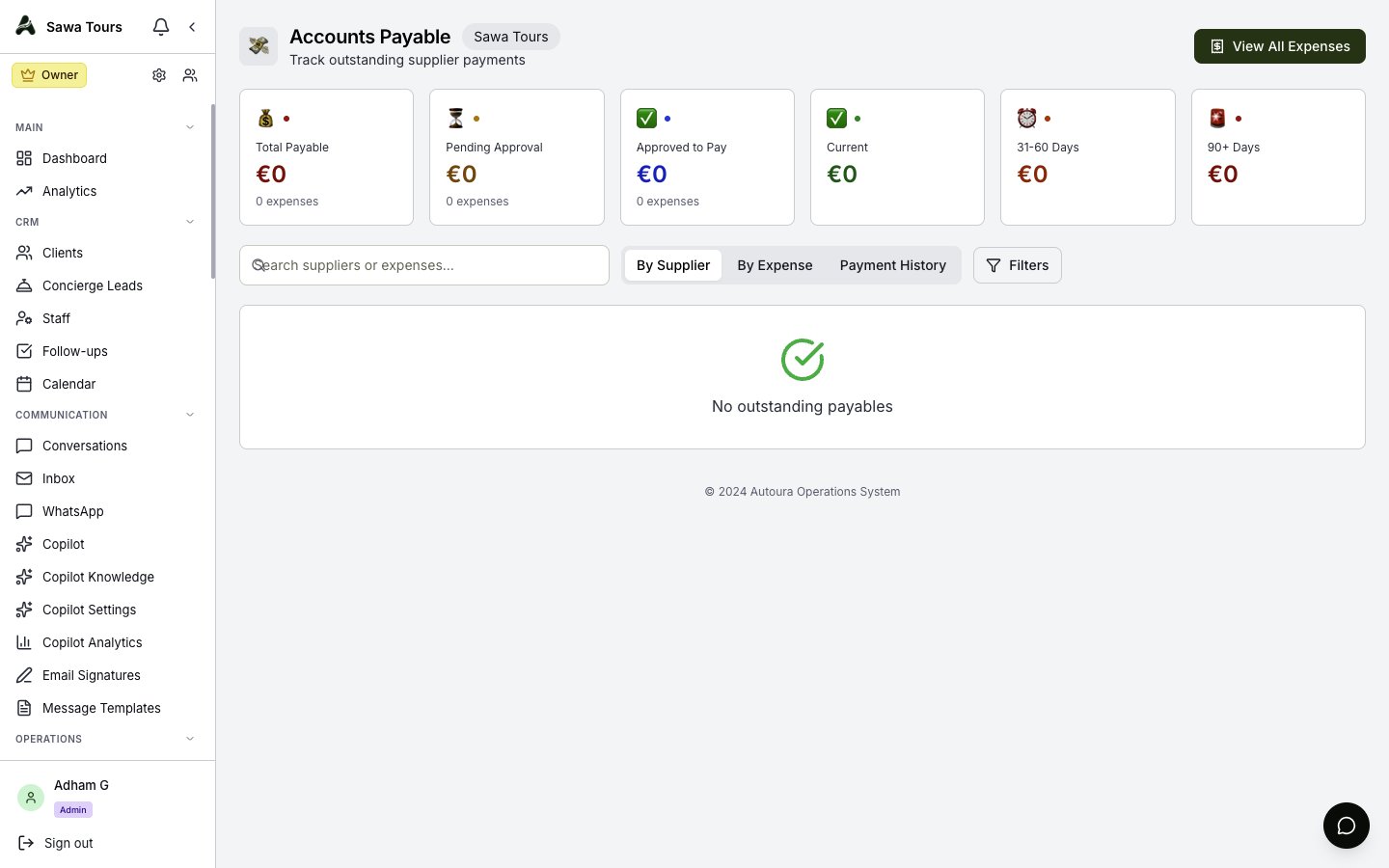
Accounts Payable aging report with supplier type and status filters
Supplier Invoices
On the Supplier Invoices page, upload a PDF or image of a supplier's invoice and the details are auto-extracted with AI. Each supplier invoice moves through a status workflow — received, matched, approved, paid, disputed, or cancelled — and carries a match status against your records: unmatched, partial, matched, or discrepancy.
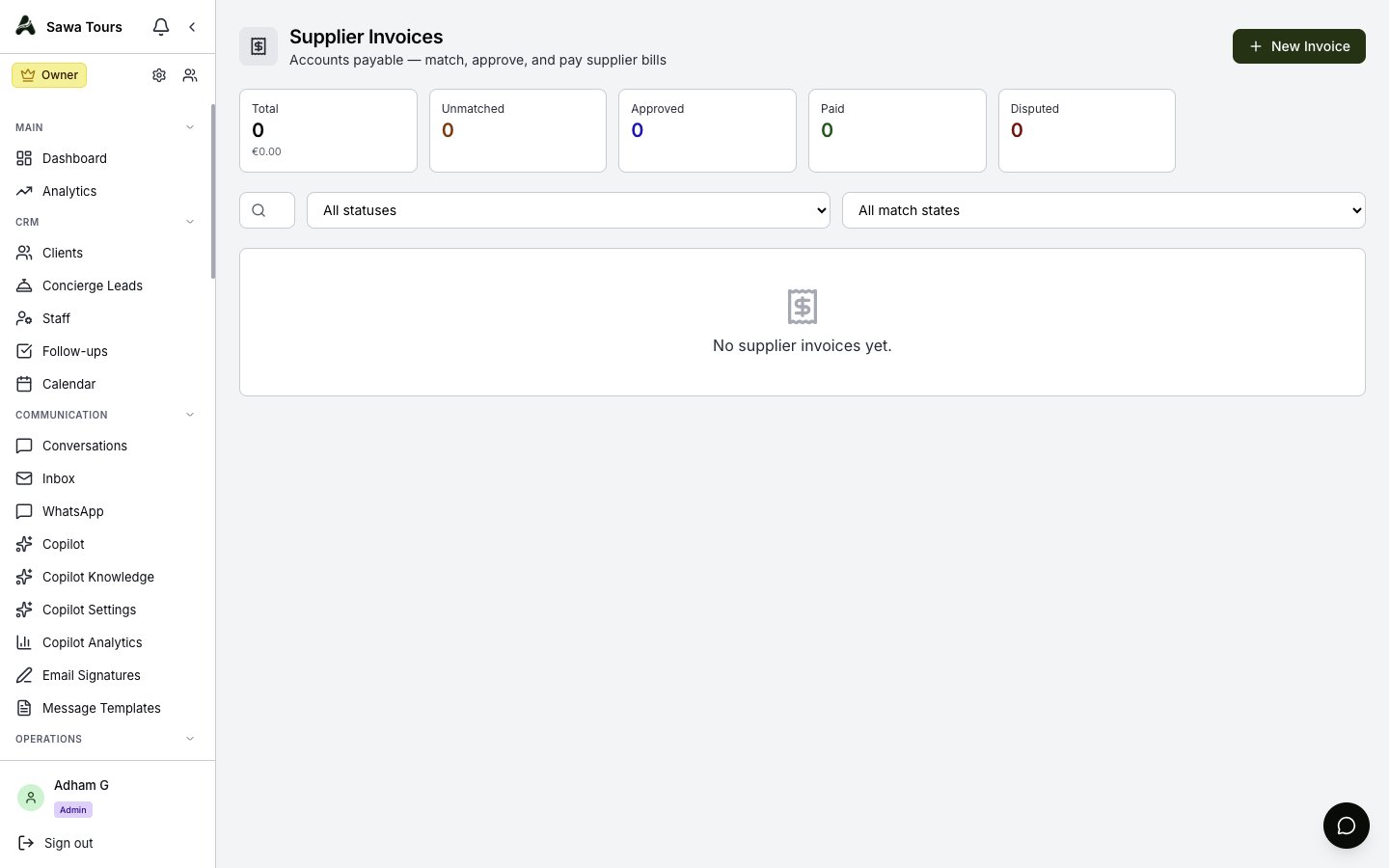
Supplier Invoices page with upload, AI auto-extraction, status workflow, and match states